How to install Windows — clear, tested, step by step
How to install Windows 11 and Windows 10
A complete, free guide to installing Windows from a USB drive: requirements, bootable USB, BIOS/UEFI settings, clean install, activation and drivers.
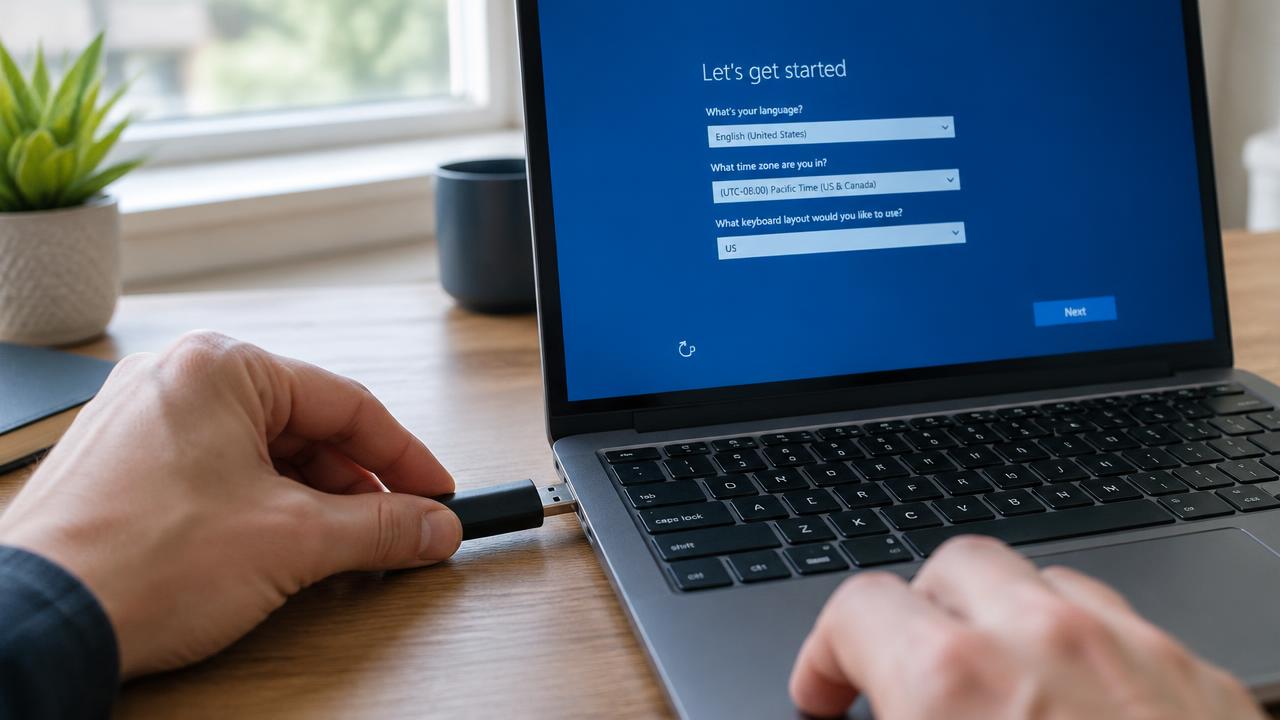
- 01
Check requirements
64-bit CPU, 4 GB RAM, 64 GB storage, TPM 2.0, UEFI Secure Boot.
- 02
Back up your data
Copy files to an external drive or cloud before you begin.
- 03
Create a bootable USB
Use the Media Creation Tool or Rufus with an 8 GB+ USB stick.
- 04
Boot from USB
Open the boot menu (F12, F11, Esc) or change boot order in BIOS/UEFI.
- 05
Install Windows
Choose language, edition, and disk, then let setup copy files.
- 06
Set up & update
Create your account, run Windows Update and install drivers.
What does it mean to install Windows?
Installing Windows means copying the Microsoft operating system onto your computer's drive so the PC can start, run programs and connect to hardware. You can install Windows on a new PC, reinstall Windows to fix a slow or broken system, or upgrade from an older version.
Why reinstall Windows?
A clean Windows installation removes accumulated junk, malware and broken settings. It is the most reliable fix for a slow computer, and it is required when you replace the hard drive or SSD.
- New or replaced SSD / hard drive
- Slow, unstable or infected system
- Upgrade from Windows 10 to Windows 11
- Selling or giving away a PC
- Processor
- 1 GHz, 2+ cores, 64-bit
- Memory
- 4 GB RAM
- Storage
- 64 GB
- Firmware
- UEFI, Secure Boot
- Security
- TPM 2.0
- Display
- 720p, 9"+ screen
Installation guides
2 min read
How to install Windows: complete step-by-step guide
Full step-by-step guide to installing Windows 11 or 10 from a USB flash drive: preparation, boot menu, partitioning, setup and first start.
Read →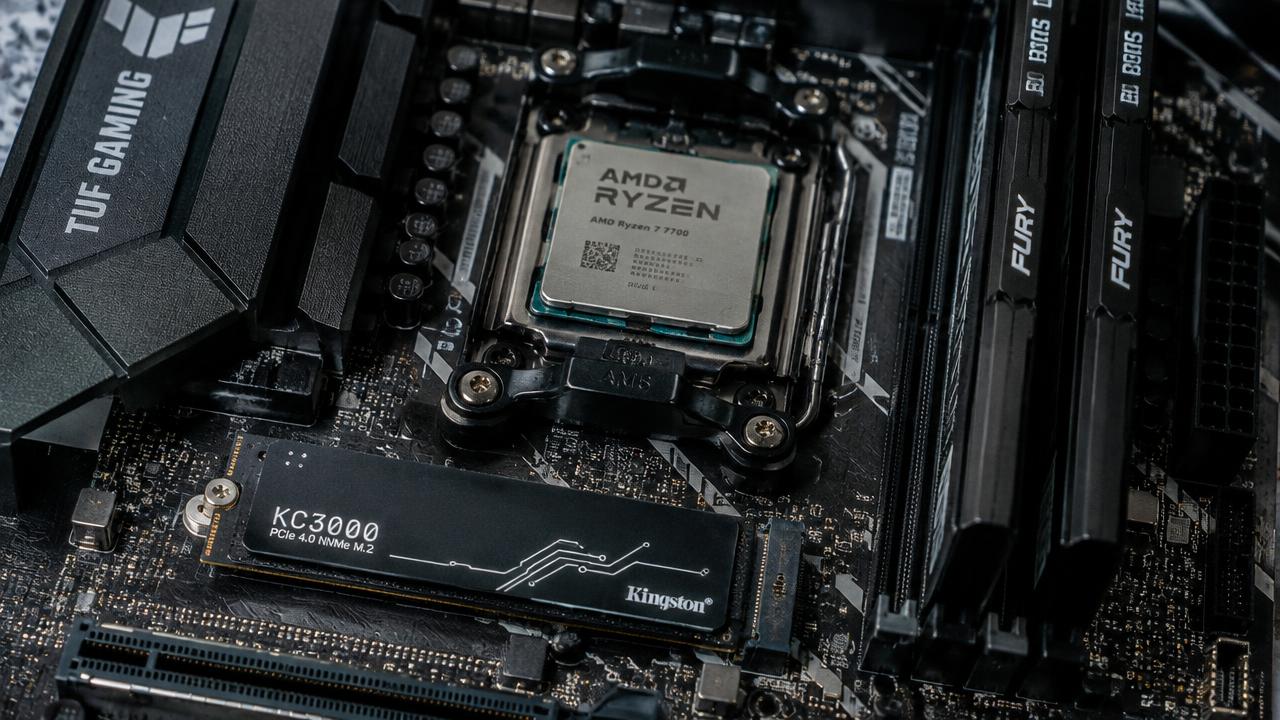
2 min read
Windows 11 system requirements: can your PC run it?
Minimum system requirements for Windows 11 and Windows 10: CPU, RAM, storage, TPM 2.0 and Secure Boot, plus how to check your PC.
Read →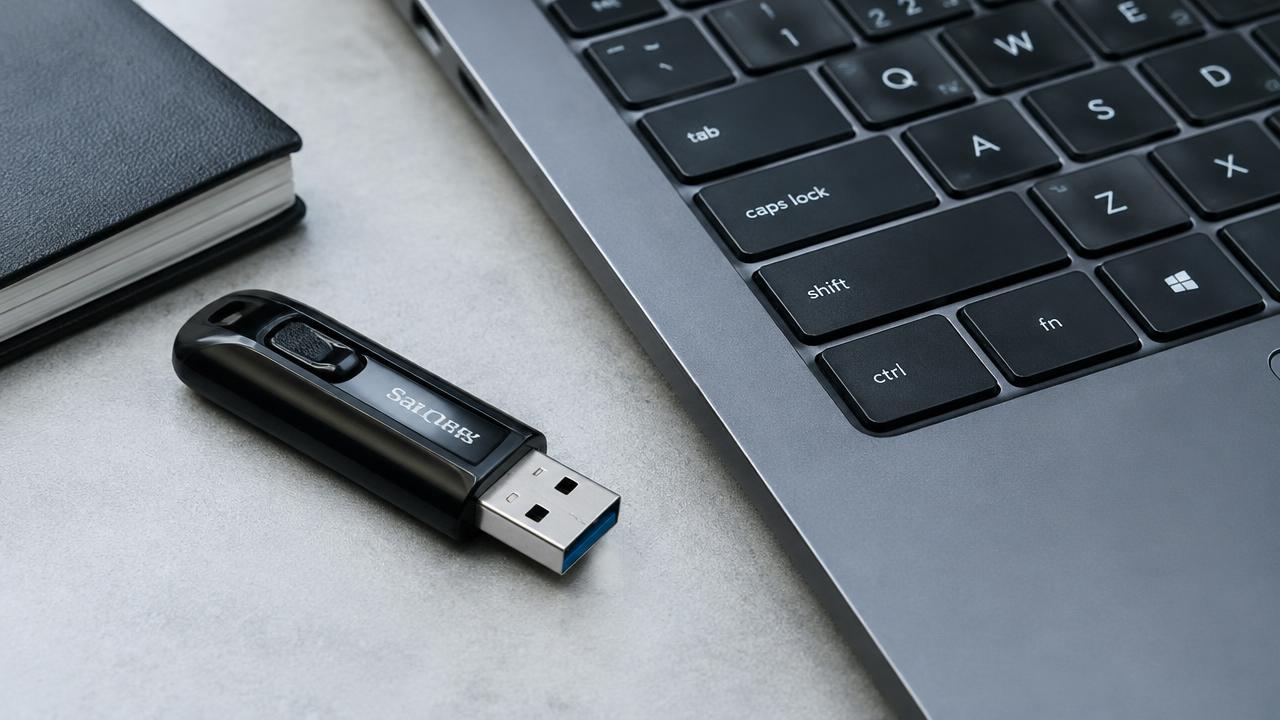
2 min read
How to create a bootable Windows USB drive
How to make a bootable Windows 11 or 10 USB flash drive with Microsoft Media Creation Tool or Rufus, step by step.
Read →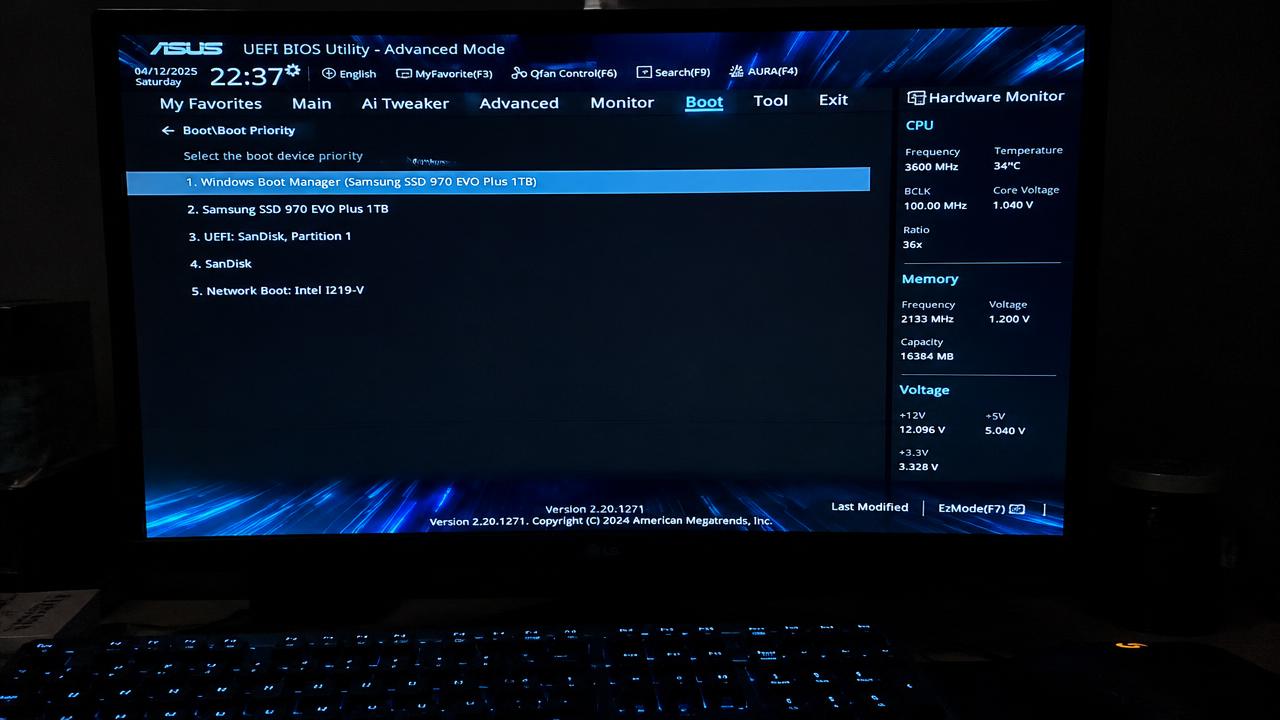
2 min read
Windows installation errors and how to fix them
Solutions for common Windows installation problems: PC doesn't boot from USB, 'This PC can't run Windows 11', no drives found, GPT/MBR errors.
Read →Articles about Windows
What Windows is, what it is for, which version to choose and how to finish setup after installation.
2 min read
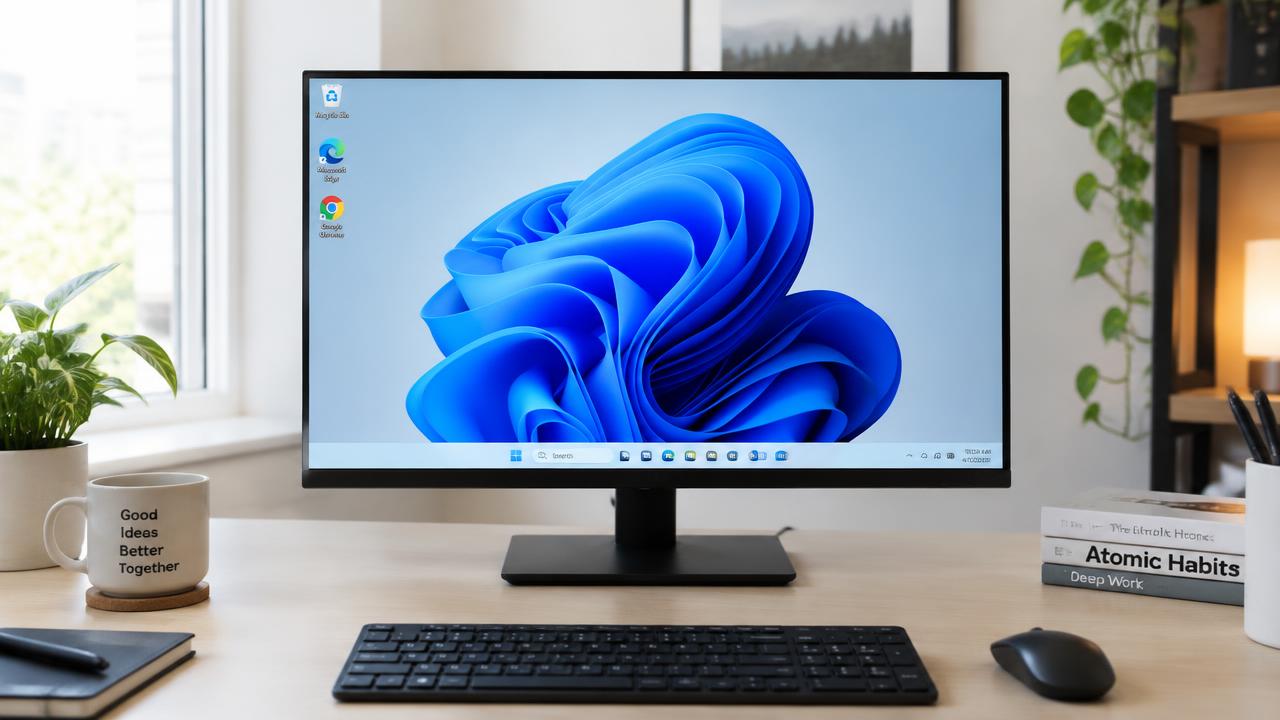
What is Windows 11 and what is it for?
What Windows 11 is, what an operating system does, key features and why you might want to install Windows 11.
Read →2 min read
Windows 10 vs Windows 11: which should you install?
Comparison of Windows 10 and Windows 11: requirements, interface, performance, gaming, security and end of support.
Read →2 min read
Clean install vs upgrade: how to reinstall Windows
Difference between a clean Windows install, an in-place upgrade and 'Reset this PC' — when to use each and how to keep your files.
Read →2 min read
How to activate Windows after installation
How Windows activation works: digital license, product key, linking to a Microsoft account and fixing activation errors.
Read →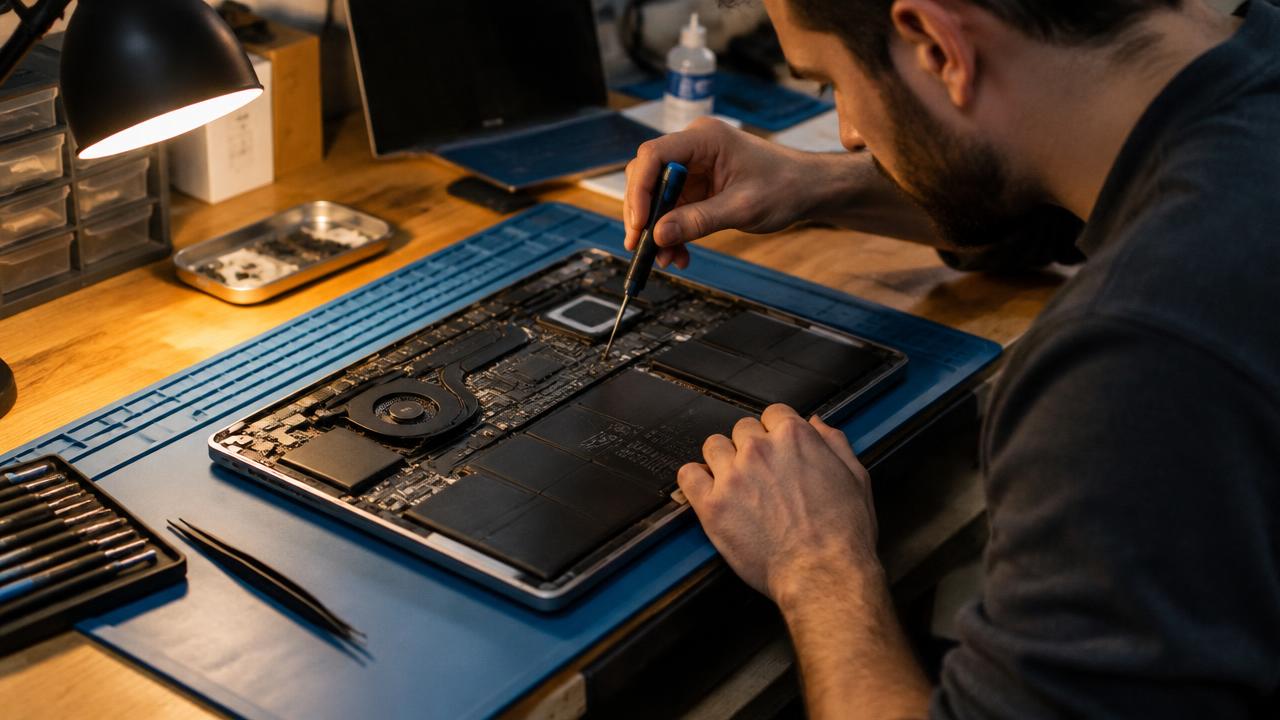
2 min read
How to install drivers after installing Windows
How to install chipset, graphics, Wi‑Fi and audio drivers after a fresh Windows install using Windows Update and manufacturer sites.
Read →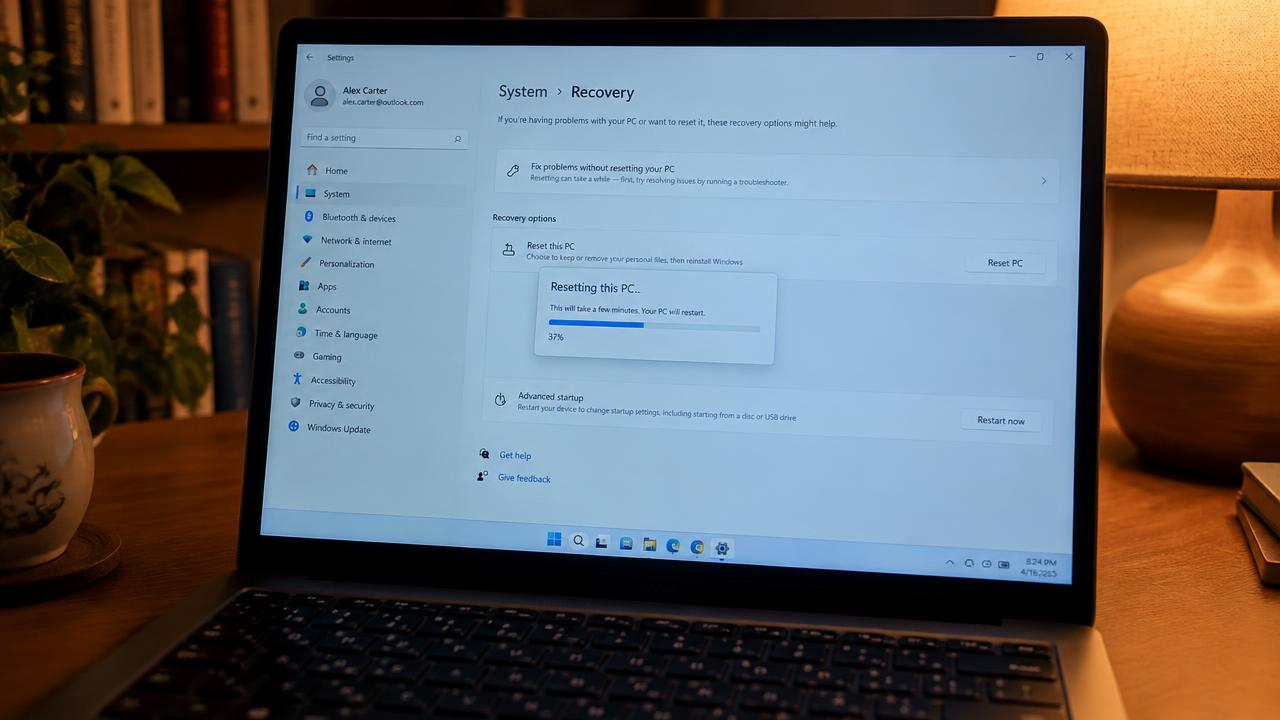
2 min read
How to install Windows without a USB drive
Reinstall or install Windows 11 and 10 without a USB flash drive: Reset this PC with cloud download, mounting an ISO, Installation Assistant and recovery.
Read →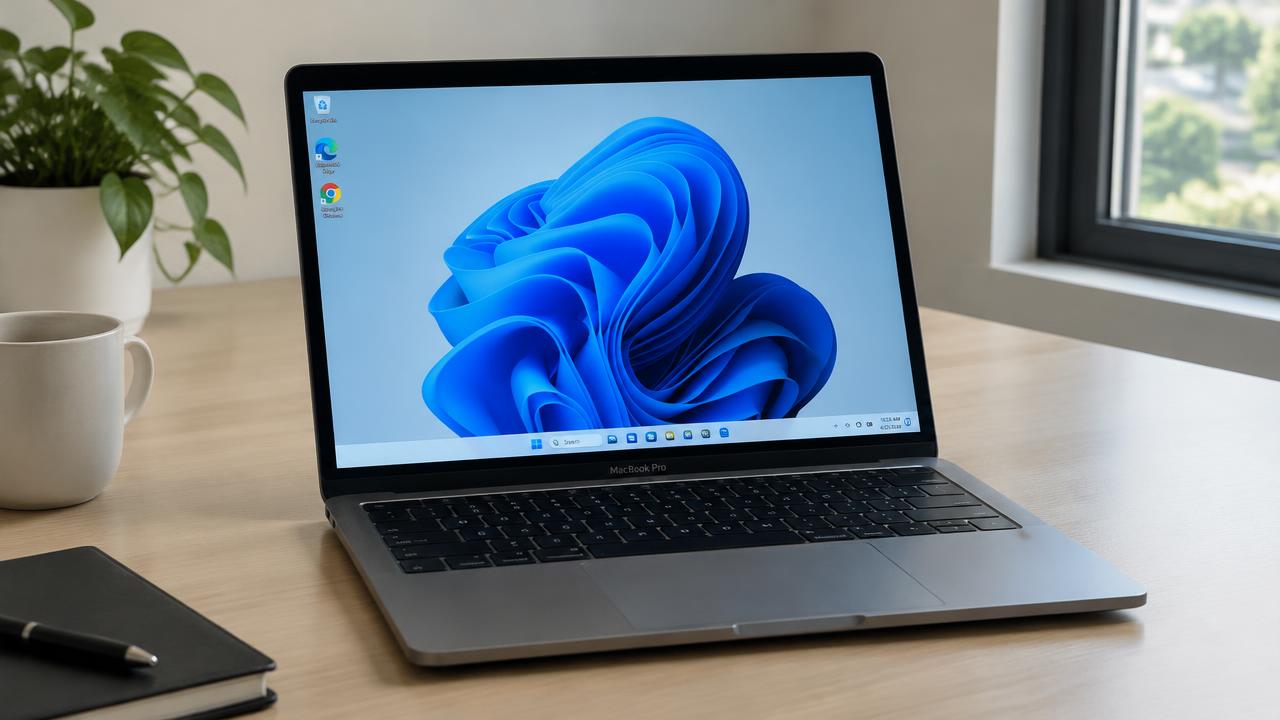
2 min read
How to install Windows on a Mac (Intel and Apple Silicon)
Install Windows 11 or 10 on a Mac: Boot Camp on Intel Macs and virtualization with Parallels or UTM on M1, M2, M3 and M4 Macs.
Read →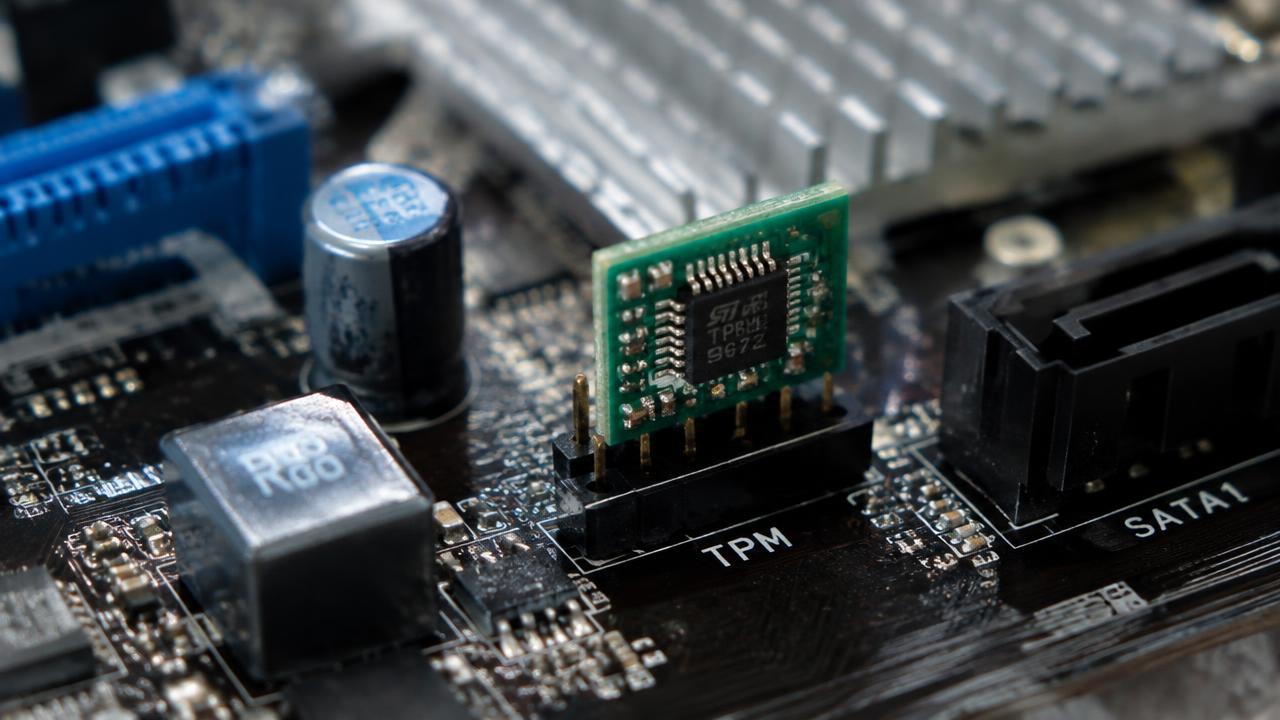
2 min read
Windows 11 without TPM 2.0: what are your options?
How to install Windows 11 on a PC that fails the TPM 2.0 or CPU check: enable fTPM/PTT, Microsoft's registry option and Rufus — plus the risks.
Read →