2 min read
How to install Windows: complete step-by-step guide
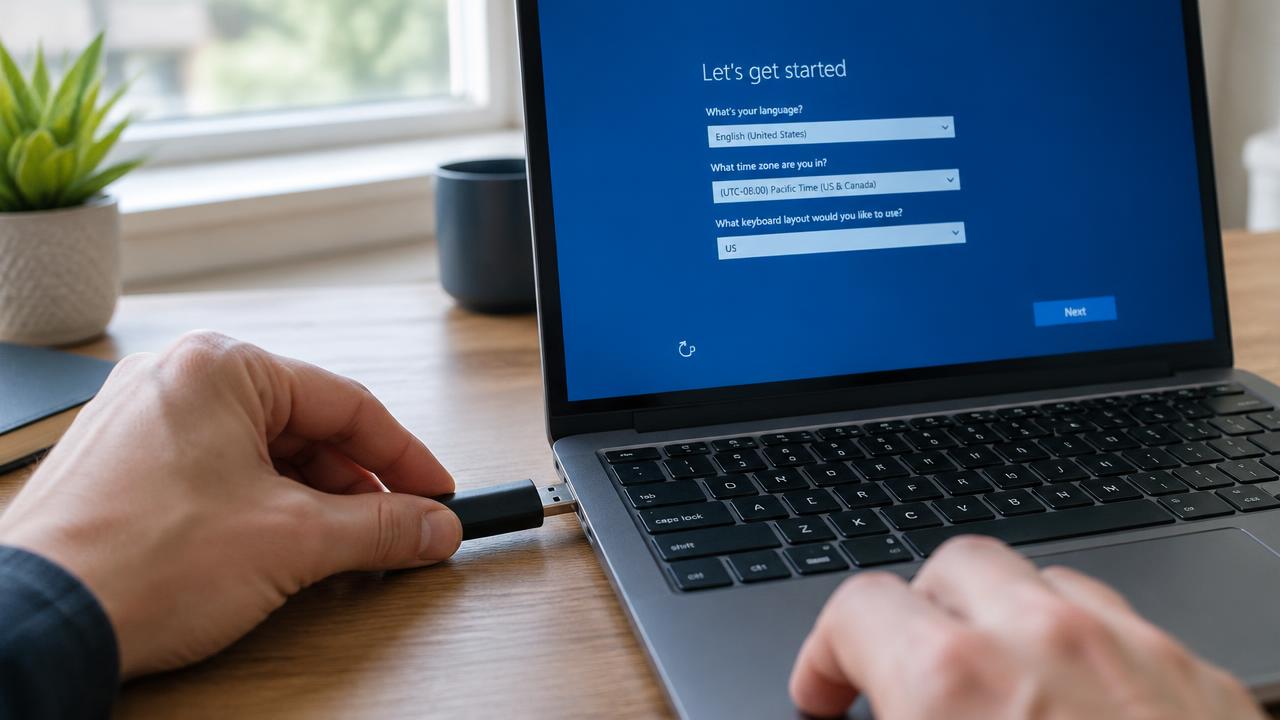
This guide shows how to install Windows 11 (the same steps work for Windows 10) on a desktop or laptop using a bootable USB drive. The whole process takes 30–60 minutes.
- 01
Check requirements
64-bit CPU, 4 GB RAM, 64 GB storage, TPM 2.0, UEFI Secure Boot.
- 02
Back up your data
Copy files to an external drive or cloud before you begin.
- 03
Create a bootable USB
Use the Media Creation Tool or Rufus with an 8 GB+ USB stick.
- 04
Boot from USB
Open the boot menu (F12, F11, Esc) or change boot order in BIOS/UEFI.
- 05
Install Windows
Choose language, edition, and disk, then let setup copy files.
- 06
Set up & update
Create your account, run Windows Update and install drivers.
1. Prepare before installing
Back up documents, photos and passwords. A clean install erases the selected drive. Write down your Wi‑Fi password and make sure the laptop is plugged in.
- USB flash drive of 8 GB or more
- Internet connection to download Windows
- Product key (optional — digital licenses activate automatically)
2. Boot from the USB drive
Insert the bootable USB, restart the PC and press the boot menu key right after power‑on. Common keys: F12 (Dell, Lenovo), F11 (MSI), F8 (ASUS), Esc or F9 (HP). Select the entry labeled UEFI: USB.
3. Run Windows Setup
Choose language, time format and keyboard, click Install now, then pick the edition (Home or Pro). Accept the license and choose Custom: Install Windows only for a clean installation.
4. Choose the disk and partitions
Delete old partitions on the target drive if you want a clean start, select the unallocated space and click Next. Setup creates the required EFI, MSR and recovery partitions automatically.
5. First setup (OOBE)
After several restarts, select your region, connect to the internet and sign in with a Microsoft account or create a local account. Then run Windows Update and install drivers.
Related guides
2 min read
How to create a bootable Windows USB drive
How to make a bootable Windows 11 or 10 USB flash drive with Microsoft Media Creation Tool or Rufus, step by step.
Read →
2 min read
Windows 11 system requirements: can your PC run it?
Minimum system requirements for Windows 11 and Windows 10: CPU, RAM, storage, TPM 2.0 and Secure Boot, plus how to check your PC.
Read →2 min read
Clean install vs upgrade: how to reinstall Windows
Difference between a clean Windows install, an in-place upgrade and 'Reset this PC' — when to use each and how to keep your files.
Read →