2 min read
Windows installation errors and how to fix them
Most Windows installation problems come from BIOS settings, disk format or missing drivers. Here are the most common errors and how to fix them.
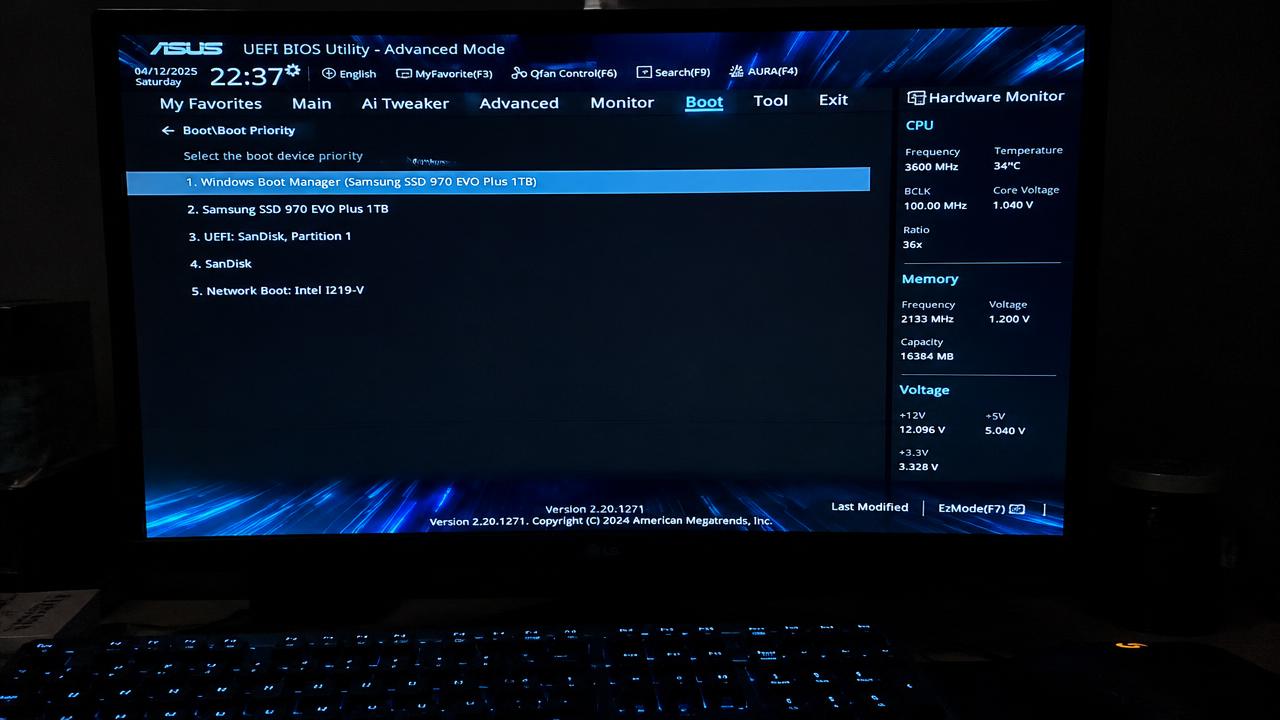
“This PC can't run Windows 11”
Enable TPM (Intel PTT / AMD fTPM) and Secure Boot in UEFI settings. If the processor is unsupported, consider staying on Windows 10 or upgrading hardware.
“We couldn't find any drives”
Setup lacks a storage driver, common with Intel RST/VMD on newer laptops. Disable VMD in BIOS or load the driver from the manufacturer's website via 'Load driver'.
“Windows cannot be installed to this disk (GPT/MBR)”
Boot the USB in UEFI mode and delete all partitions on the drive, or press Shift + F10 and run diskpart → clean → convert gpt. Warning: this erases the disk.
PC doesn't boot from USB
Disable Fast Boot, select the UEFI: USB entry in the boot menu, and recreate the drive if it was made for legacy BIOS.
Related guides
2 min read
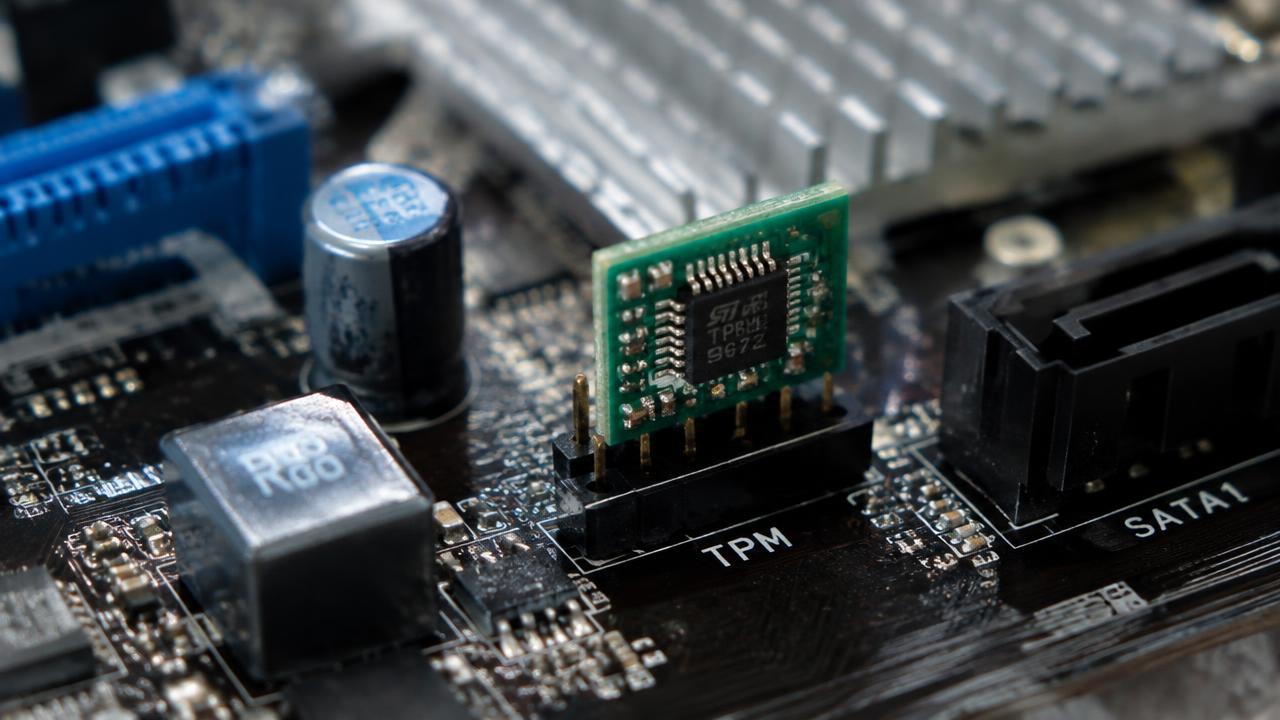
Windows 11 without TPM 2.0: what are your options?
How to install Windows 11 on a PC that fails the TPM 2.0 or CPU check: enable fTPM/PTT, Microsoft's registry option and Rufus — plus the risks.
Read →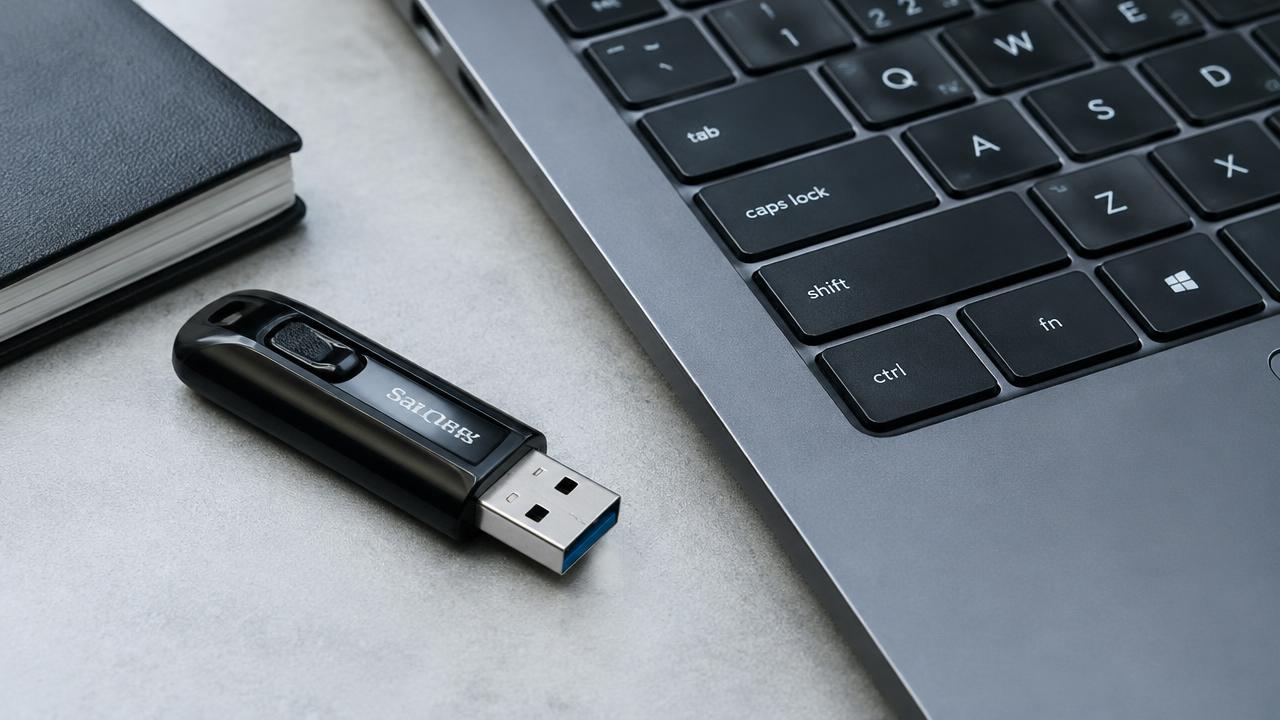
2 min read
How to create a bootable Windows USB drive
How to make a bootable Windows 11 or 10 USB flash drive with Microsoft Media Creation Tool or Rufus, step by step.
Read →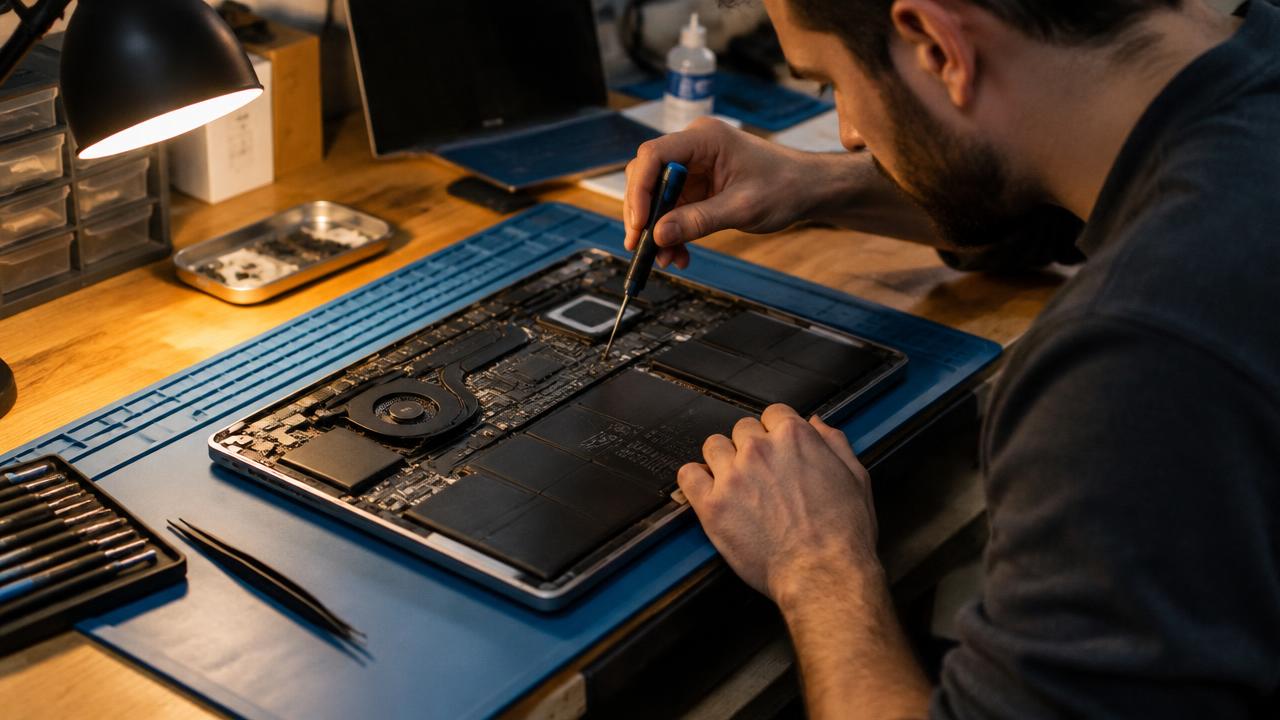
2 min read
How to install drivers after installing Windows
How to install chipset, graphics, Wi‑Fi and audio drivers after a fresh Windows install using Windows Update and manufacturer sites.
Read →