2 min read
How to create a bootable Windows USB drive
A bootable USB drive (installation media) lets you install or reinstall Windows on any computer. You need a USB stick of at least 8 GB — all data on it will be erased.
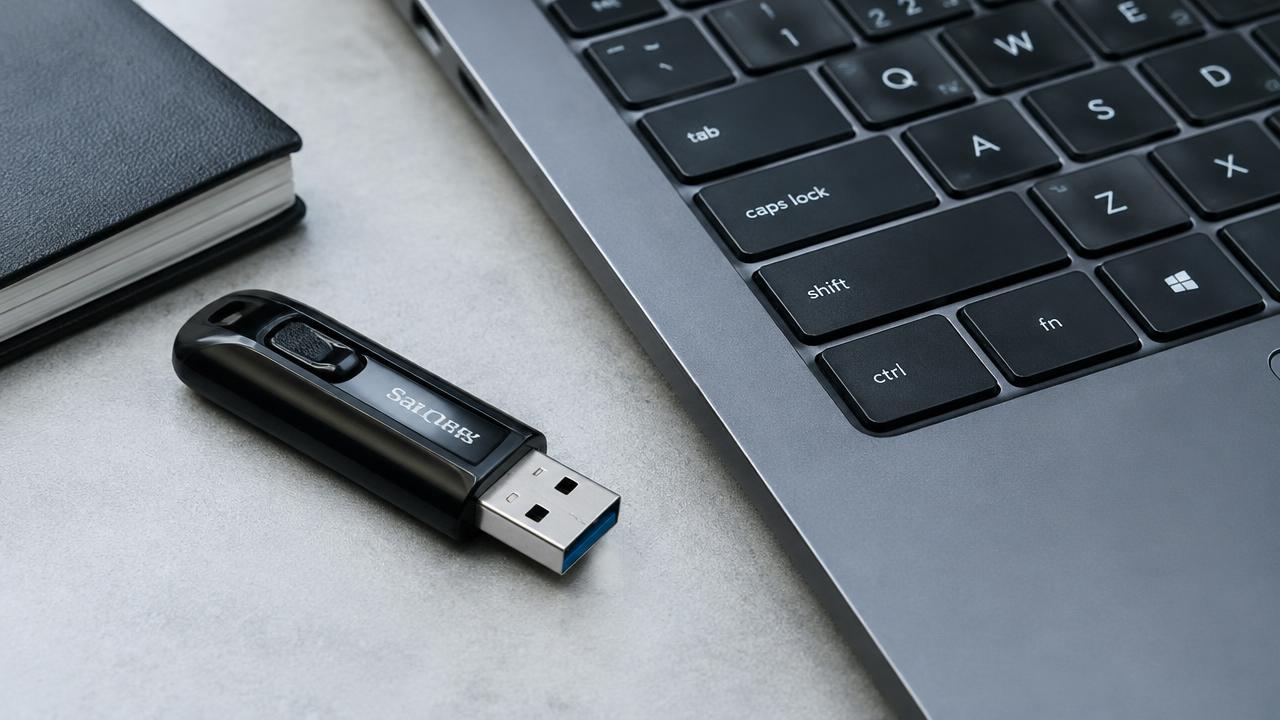
Method 1: Media Creation Tool
Download the official Media Creation Tool from Microsoft's website, run it, accept the terms, choose 'Create installation media', select language and edition, then pick USB flash drive. The tool downloads Windows and prepares the drive.
Method 2: Rufus with an ISO
Download the Windows ISO from Microsoft and the free Rufus utility. In Rufus select your USB, choose the ISO, set partition scheme GPT and target system UEFI, then click Start.
- Partition scheme: GPT
- Target system: UEFI (non CSM)
- File system: NTFS or FAT32
Common mistakes
Using a USB 2.0 drive slows installation; prefer USB 3.0. If the PC does not see the drive, disable Fast Boot, try another port and check that the drive was created in GPT/UEFI mode.
Related guides
2 min read
How to install Windows: complete step-by-step guide
Full step-by-step guide to installing Windows 11 or 10 from a USB flash drive: preparation, boot menu, partitioning, setup and first start.
Read →
2 min read
How to install Windows without a USB drive
Reinstall or install Windows 11 and 10 without a USB flash drive: Reset this PC with cloud download, mounting an ISO, Installation Assistant and recovery.
Read →
2 min read
Windows installation errors and how to fix them
Solutions for common Windows installation problems: PC doesn't boot from USB, 'This PC can't run Windows 11', no drives found, GPT/MBR errors.
Read →